Setting Reorder Points Just Got a Lot Less Manual
Warehouse managers have long wrestled with one of inventory management’s most tedious tasks: setting the right minimum and maximum quantities for replenishment rules. Set the minimum too low, and you risk stockouts. Set the maximum too high, and you tie up capital in excess inventory. The numbers should reflect actual demand patterns, but calculating them has traditionally meant pulling reports, crunching spreadsheets, and manually updating each product’s reorder points. Odoo 20 cuts that process down to a single click with a new Suggest button on the replenishment report that analyzes historical purchasing data and proposes min-max values automatically.
How the Suggest Button Works
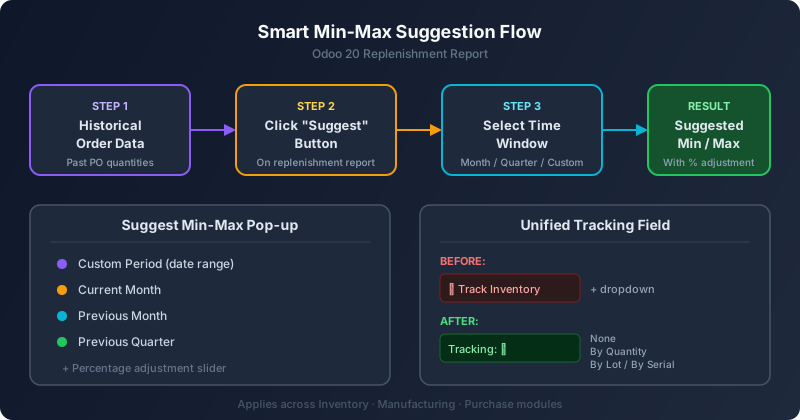
The new feature lives on the replenishment report, the same screen where warehouse teams already monitor stock levels and trigger orders. A prominent Suggest button now sits alongside the existing controls. When clicked, it opens a Suggest Min-Max pop-up that lets users choose the time window for the historical analysis. The options are practical and well-chosen: a custom date range for teams that want full control, the current month for a snapshot of recent activity, the previous month for a slightly longer view, or the previous quarter for a broader demand picture.
Once the time window is selected, Odoo scans the confirmed purchase orders within that period and calculates suggested minimum and maximum quantities based on actual ordering patterns. The results appear in the Replenishment Information pop-up, which has been expanded to show not just the current min-max values but also the system’s suggested alternatives. A percentage adjustment slider lets managers fine-tune the suggestions — adding a ten percent safety buffer, for example, or scaling down for seasonal slowdowns — without having to redo the calculation manually.
Replenishment Frequency and Timing Get Clearer
The Replenishment Information pop-up has been substantially reworked beyond just the min-max suggestions. It now displays the replenishment frequency for each product, giving managers a clear picture of how often they’ve been reordering and whether that cadence makes sense going forward. The terminology has been tightened up as well: what was previously called “lead times” throughout the replenishment interface is now labeled “replenishment time,” a change that better reflects what the number actually represents in a warehouse context where the same term gets used loosely across purchasing, manufacturing, and logistics.
The forecasted date calculations have also been improved. Horizon days — the forward-looking window that determines when upcoming demand will trigger a replenishment — are now factored into the forecasted date examples more transparently. A product with a fifteen-day vendor replenishment time and a seven-day planning horizon will show a clear breakdown of how those numbers combine to produce the forecasted replenishment date, making it much easier for managers to understand why the system is recommending a particular order timing.
A Simpler Way to Order
Alongside the suggestion engine, Odoo 20 has streamlined the ordering action on the replenishment report. The previous two-step sequence of clicking Replenish and then selecting Order to Max has been replaced with a direct Order button. It’s a small change in terms of functionality, but it removes a layer of indirection that tripped up new users and slowed down experienced ones. The button now also creates transfers for inter-warehouse moves rather than only generating purchase orders, which means the same workflow handles both external procurement and internal redistribution.
The Tracking Field Consolidation
In a separate but equally significant change, Odoo 20 has replaced the old Track Inventory checkbox and its associated dropdown with a single unified Tracking field on the product form. The new field offers four explicit options: None, By Quantity, By Lot, and By Serial Number. The old approach required users to first enable a checkbox and then select a tracking method from a separate control — a two-step process that was both confusing for new users and error-prone for power users who occasionally forgot to set the method after enabling tracking.
The consolidation isn’t cosmetic. It affects product setup workflows across three modules. In Inventory, the expiration dates documentation now references the Tracking field directly. In Manufacturing, the lot and serial number assignment process for work orders has been rewritten to start from the new field, and a note now explicitly explains that selecting None means the product will not be tracked through production. In Purchase, the temporary reordering rules setup now instructs users to select By Quantity in the Tracking field instead of checking the old Track Inventory box and ensuring the right option is selected.
Cross-Module Consistency Wins
What makes the Tracking field change notable isn’t just the UI improvement — it’s the consistency it brings across Odoo’s supply chain modules. Previously, each module’s documentation described the tracking setup slightly differently, using its own terminology and its own sequence of steps. The Manufacturing module talked about enabling tracking before assigning lots. The Inventory module described clearing the field text and clicking outside it to untrack a product. The Purchase module referenced a checkbox that may or may not have been visible depending on your configuration. With a single Tracking field and a single set of options, all three modules now point to the same control and use the same language, which should cut down on the confusion that has plagued cross-functional teams trying to get their product data right.
A Signal That Odoo Is Listening to Warehouse Teams
Both the min-max suggestion engine and the Tracking field consolidation point in the same direction: Odoo is paying closer attention to the daily friction points that warehouse and inventory managers deal with. The suggestion button doesn’t replace professional demand planning tools, but it gives small and mid-sized teams a data-driven starting point that’s worlds better than guessing. The Tracking field doesn’t add new functionality, but it removes a source of errors that has been quietly causing data quality issues across deployments for years. Together, they make Odoo 20’s inventory management feel measurably more polished and production-ready.