Service charges are one of those things that every hospitality business handles differently, and most POS systems handle badly. Some restaurants tack on a flat fee per table. Others charge a percentage of the total. Fine-dining spots might apply the fee before discounts so a comp’d bottle of wine doesn’t reduce the service charge, while casual chains want it calculated after everything — loyalty discounts, pricelists, the works. Until now, Odoo’s Point of Sale left operators to add these manually or hack together workarounds with custom products.
That changes in Odoo 20. Service fees are now a native, toggle-on feature built directly into POS presets, and the implementation is thorough enough to cover most real-world billing scenarios without custom development.
How It Works Inside a Preset
The service fee lives under a new Options tab in the preset configuration screen. Flip the Service Fee toggle on, and three settings appear. First, you choose a Service Fee Product — this is an actual product record, which means it carries its own income account and tax rules. If your jurisdiction taxes service charges differently from food sales, or if you need service fee revenue hitting a separate general ledger line, you configure it once on the product and every order inherits the correct accounting treatment automatically.
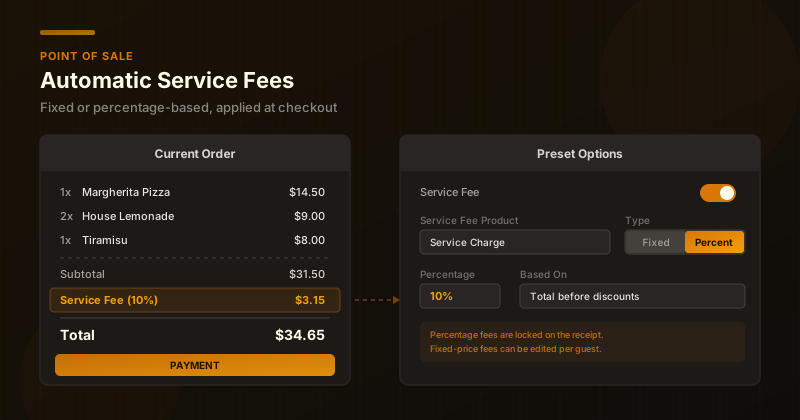
Second, you pick the fee type: Fixed Price or Percent. A fixed-price fee adds a flat amount to every order — useful for cover charges or per-seat fees at banquet events. A percentage fee calculates against the order total. Third, and this is where the nuance matters, for percentage fees you choose whether the calculation uses the total before or after discounts. That single dropdown eliminates an entire category of “why is my service charge wrong” complaints, because it explicitly accounts for the interaction between fees and the various discount mechanisms Odoo supports: loyalty programs, line discounts, global discounts, and pricelist adjustments.
Locked Lines vs. Editable Lines
The way the fee appears on the order differs based on its type, and this is a design decision worth noting. Percentage-based service fees produce a line item that cashiers cannot modify. The logic makes sense — the fee is a calculated function of the order total, so manually changing it would break the math. If a server adds another appetizer, the service fee recalculates. If a manager comps a dish, the fee adjusts. The line stays in sync with the order without anyone touching it.
Fixed-price fees, on the other hand, land on the receipt with editable quantity and price fields. This opens up flexibility that percentage fees can’t offer. A banquet hall charging $5 per guest can set the fixed fee to $5 and let the cashier adjust the quantity to match the headcount. A venue with a two-tier cover charge — $10 for adults, $5 for children — can adjust the price per line. The fee is still automatic in the sense that it appears the moment an order starts under that preset, but it’s editable enough to handle variable situations.
Self-Service Kiosks Get Stricter and Smarter
The kiosk side of presets picked up several changes alongside the service fee feature. When a service fee is enabled and the preset is configured for table service in the self-ordering flow, the fee gets added to the customer’s order automatically — and they cannot remove or modify it. For restaurants that include a mandatory service charge on dine-in orders, this closes the gap where a kiosk order could bypass the fee that a register operator would always remember to apply.
Identification requirements also tightened. Kiosk orders now require both a name and a phone number from the customer, where previously the phone field was optional. For restaurants that need to call customers when their order is ready or send pickup notifications, this eliminates the “they didn’t leave a number” problem at its source rather than relying on a “please enter your phone” prompt that customers could skip.
Capacity Indicators That Actually Prevent Overbooking
The time-slot scheduling within presets now communicates capacity limits visually instead of just silently blocking orders. On the register, time slots that have reached their preparation capacity display in red, giving the cashier an immediate visual cue that a particular window is full before they try to select it and hit an error. On kiosks, full time slots go further — they’re not selectable at all. The customer only sees and can choose from slots that still have availability.
This matters most for businesses running pre-order or scheduled pickup flows. A bakery taking cake orders for specific time windows, a restaurant offering timed lunch seatings, or a food truck with fixed prep capacity all benefit from customers self-filtering into available slots rather than placing orders that the kitchen can’t fulfill.
Small UI Refinements That Add Up
Beyond the headline features, the preset workflow picked up a handful of interface improvements that smooth out the daily experience. The button to create a new preset changed from “New” to “Create New,” which sounds trivial but removes ambiguity in a screen where “New” could mean a new preset, a new order, or a new session. Editing an existing preset now works by clicking directly on it rather than navigating through a separate “Configure Presets” button — fewer clicks to reach the settings you actually want to change.
The register workflow also added a small but useful touch: the order name is now set immediately after selecting a preset, and operators can edit it via a “Set Order Name” option. For businesses that label orders by customer name, table number, or ticket reference, this keeps the naming step in the natural flow of starting an order rather than requiring the cashier to remember to set it later.
Why This Matters for Hospitality Operations
The common thread across these changes is reducing the gap between how a restaurant actually operates and what the POS can enforce automatically. Service fees that calculate themselves, capacity limits that prevent overbooking visually, mandatory identification on kiosk orders — these are all situations where the previous answer was either “train your staff to remember” or “build a custom module.” Neither scales well. The first fails during rush hours when staff are moving fast. The second breaks on upgrades and costs more to maintain than the feature is worth.
By embedding service fees into the preset system specifically, Odoo also ties them to the context of the order. A dine-in preset can carry a 10% service charge while a takeout preset at the same restaurant carries none, with no manual switching required. That’s the kind of operational logic that used to require conditional pricing rules or custom fiscal positions, and now it’s a toggle in a preset.