Custom tax reports have been one of the most frequently requested capabilities in Odoo’s accounting module, and one of the least documented. Users who needed a tax report that didn’t match one of the built-in country-specific templates were left to reverse-engineer the existing reports or rely on community forum posts. That gap has just been closed.
Odoo has published a comprehensive guide for building custom accounting reports from the ground up — not just tax reports, but also custom balance sheets and income statements with specific groupings and layouts. The guide walks through the entire process, from enabling the configuration interface in developer mode to creating menu items for finished reports.
Root Reports and Variants: Two Paths to a Custom Report
The first concept the guide establishes is the distinction between root reports and variants. A root report is a standalone, top-level report that gets its own menu item under Accounting → Reporting. A variant is a localized version of an existing root report — think of it as a country-specific adaptation that appears in the variant selector dropdown when you open the parent report.
This architecture is what lets Odoo ship a single “Generic Tax Report” at the root level while offering Belgian VAT, French TVA, and dozens of other country-specific versions as variants. If you’re creating a report for a specific jurisdiction, you’ll usually want a variant. If you’re building something entirely new — a custom management report, an internal margin analysis — you want a root report.
Creating the menu item for a root report requires a specific sequence: open the report, click the gear icon, select “Create Menu Item,” and refresh the page. It’s a small ceremony, but it’s the kind of step that would have taken an hour to discover without documentation.
Report Lines and Expressions: The Building Blocks
Every report is built from lines, and every line can contain one or more expressions. A report line needs a name, can optionally have a code for formula references, and serves as the visible row in the finished report. Expressions are the calculation layer beneath each line — they define where the numbers come from.
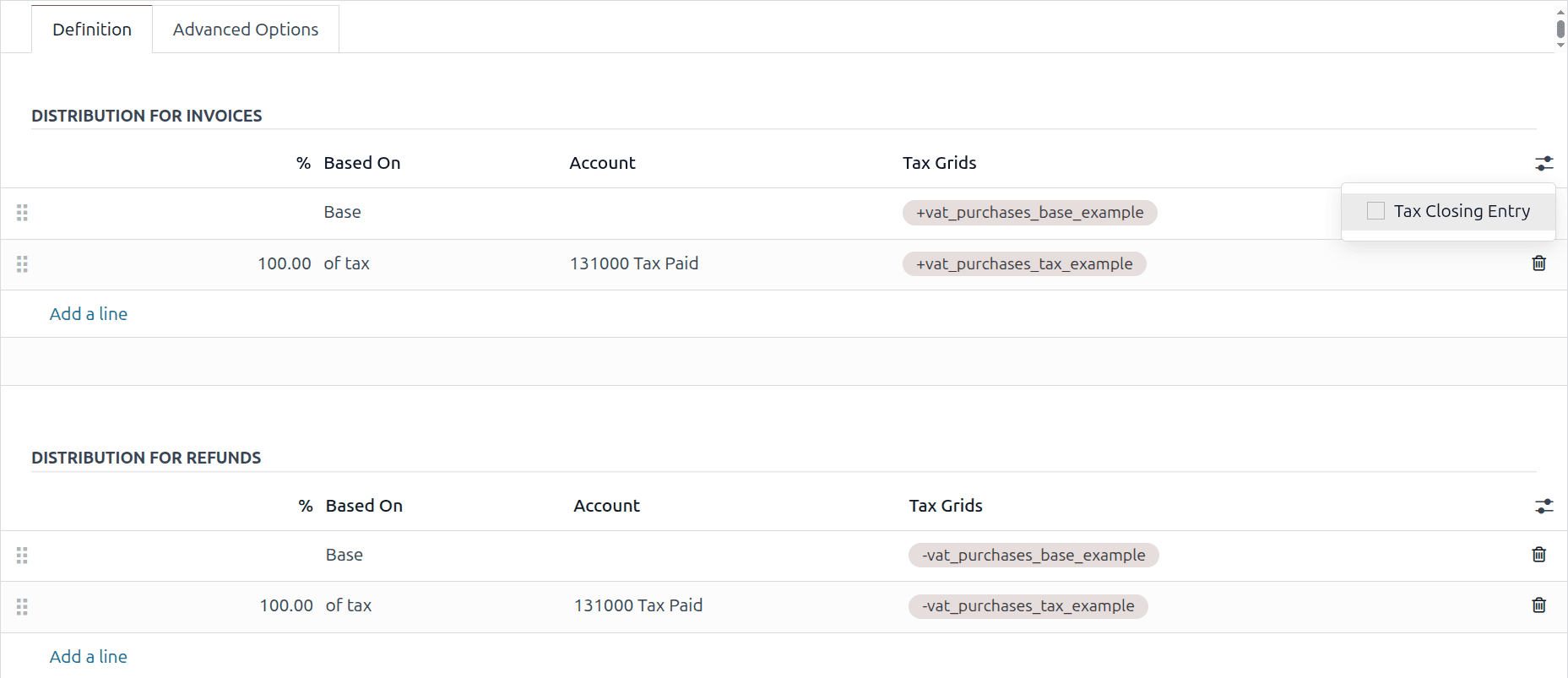
Each expression requires three things: a label (unique within its parent line), a computation engine, and a formula. The engine determines the data source. Odoo supports several engines, but the one that matters most for tax reporting is the custom tax engine, which pulls values directly from tax grid tags.
The formula syntax for the custom tax engine is straightforward. You reference tax grids by their tag names, and the engine aggregates the relevant journal entries. For multi-line reports, you can reference other lines by their codes in aggregation formulas, building up summary rows from detail rows without duplicating any logic.
The Custom Tax Engine in Practice
What makes this particularly useful is how directly it maps to the way accountants think about tax reporting. In most jurisdictions, a tax report is a grid: each cell corresponds to a specific tax code, and the value is the sum of all transactions tagged with that code during the reporting period.
Odoo’s custom tax engine mirrors this structure. You set up your tax grid tags to match the codes required by your local tax authority, then build report lines that reference those tags. The result is a report that stays current automatically as transactions are posted — no manual data extraction, no export-to-Excel step.
For businesses operating in jurisdictions where Odoo doesn’t provide a pre-built tax report variant, this is transformative. Instead of waiting for Odoo to add support for your country’s specific tax filing format, you can build it yourself. The custom tax engine handles the data retrieval; you just need to know which grid tags map to which lines on your government’s form.
Line Options and Hierarchy Controls
Beyond the basic structure, the guide covers the configuration options that control how report lines behave. Lines can be set to show only when they have a non-zero value, collapsed by default to reduce visual noise, or configured to display as subtotals with distinct formatting.
The hierarchy system is particularly well thought out. Lines can be nested, with parent lines automatically aggregating their children. This means you can build a tax report that starts with high-level categories (output VAT, input VAT, net payable) and drills down into the individual tax codes that feed each category — all defined declaratively, without any custom code.
Why Documentation Matters as Much as the Feature
The custom report builder has existed in Odoo for some time. What’s new here is the documentation, and that distinction matters more than it might seem. A powerful feature that nobody knows how to use is effectively a feature that doesn’t exist. The number of Odoo implementations that have paid for custom development to build reports that could have been configured through the existing interface is probably significant.
The guide is structured as a practical walkthrough rather than a reference manual. It assumes you’re building a report and walks you through each decision point in order. That pedagogical approach — showing the “what” and the “why” together — is what separates documentation that gets used from documentation that gets skimmed and abandoned.