You wouldn’t believe how many Odoo users have tried to configure DHL Express shipping by jumping straight to the Shipping Methods screen, only to wonder why DHL doesn’t appear as a provider option. The answer was always the same: they hadn’t installed the DHL delivery module first. But the documentation never led with that step, so users kept missing it.
That’s fixed now. The DHL shipping connector guide has been rewritten to start with module installation before anything else, a change that sounds trivial but should cut down on one of the most common configuration support requests in the Inventory app.
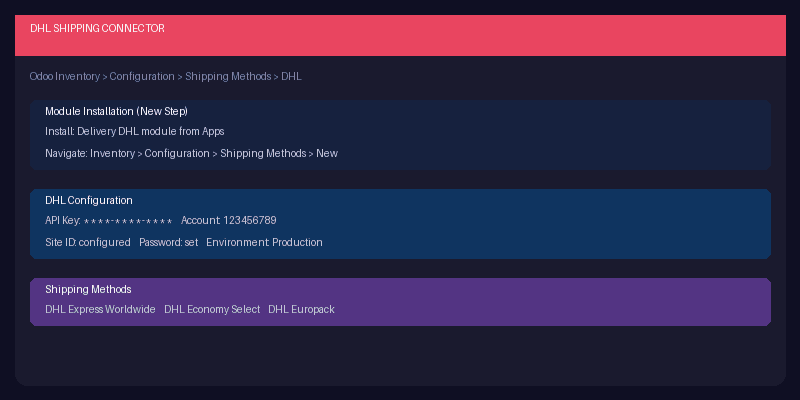
What the Guide Looks Like Now
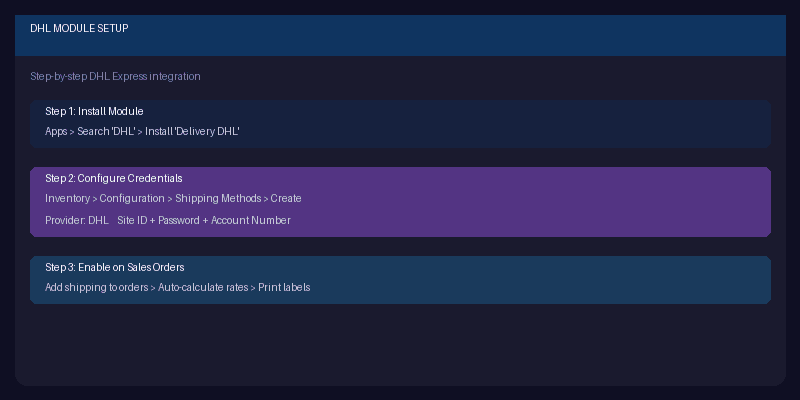
The updated documentation follows a strict sequential flow. Step one: go to Apps and install the “Delivery DHL” module. Until this is done, the DHL option simply won’t exist in the shipping method configuration, and no amount of credential entry will make it appear. The guide makes this prerequisite impossible to miss.
Step two: navigate to Inventory > Configuration > Shipping Methods and create a new method with DHL as the provider. Step three: enter the API credentials — Site ID, password, and account number from DHL’s developer portal. The same fields that were always there, but now approached in the right order.
The subheadings have been renamed for clarity too. Instead of generic section titles that could apply to any carrier, each heading now specifically references DHL and the action being taken. Small change, big improvement in scannability when a warehouse manager is setting this up at 7 AM before the first shipment.
What Got Removed
The guide previously included a block of general information about third-party shipping carriers in Odoo — how they work conceptually, what the integration model looks like, and other background that applied to all carriers equally. That content has been removed from the DHL page. If you’re reading the DHL guide, you already know you want DHL. You don’t need a primer on how shipping integrations work in general.
This editorial trimming makes the page faster to follow and reduces the distance between “I opened this page” and “my DHL shipping is working.” Every paragraph of background context between those two points is a paragraph where someone might close the tab and file a support ticket instead.
The Pattern Behind the Fix
This DHL documentation update is part of a broader effort to rewrite shipping carrier guides with module installation as the explicit first step. Odoo’s modular architecture — where every carrier integration is a separate installable module — is one of its strengths, but it creates a documentation challenge. You can’t assume the module is installed, and you can’t bury the installation step in a prerequisites paragraph that nobody reads.
For teams setting up DHL Express shipping in Odoo for the first time, the updated guide should get you from zero to live shipping rates in under ten minutes. For teams that already have DHL configured, this is a reminder to check that your setup matches the corrected documentation — there may be configuration options you missed because the old guide didn’t surface them clearly.