Running a conference with three workshop tracks, a yoga retreat with morning and afternoon sessions, or a tasting event with hourly time windows has always required a workaround in most event management tools. Either you create separate events for each slot — cluttering the listing page and splitting your attendee data — or you ask people to register for the whole thing and sort out session assignments manually.
Odoo’s Events app now handles this natively. A single checkbox on the event form activates multi-slot scheduling, turning one event into a container for as many bookable time windows as the organizer needs. Each slot carries its own start time, end time, timezone, and optional capacity cap. When a slot fills up, it automatically marks itself as sold out on the public registration page.
Setting Up Slots Takes About Thirty Seconds
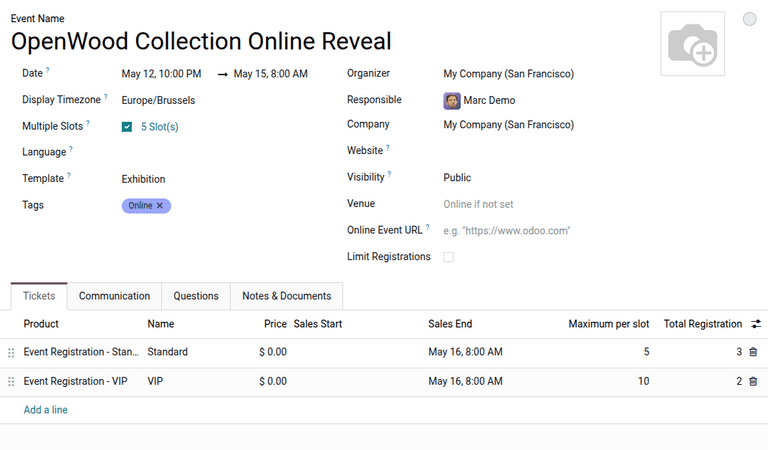
The configuration is deliberately lightweight. Open any event, check the “Multiple Slots” box, and a slot counter link appears next to the field showing how many sessions exist. Under the Tickets tab, a new “Maximum per slot” column appears on each ticket line, letting organizers set different capacity limits per ticket type per session.
This matters for events where VIP attendees get guaranteed slots while general admission operates on a first-come, first-served basis. A wine tasting might offer 20 VIP reservations per hour slot but cap walk-ins at 10. The system enforces these limits independently per slot without requiring separate ticket products.
Two Ways to Build the Schedule
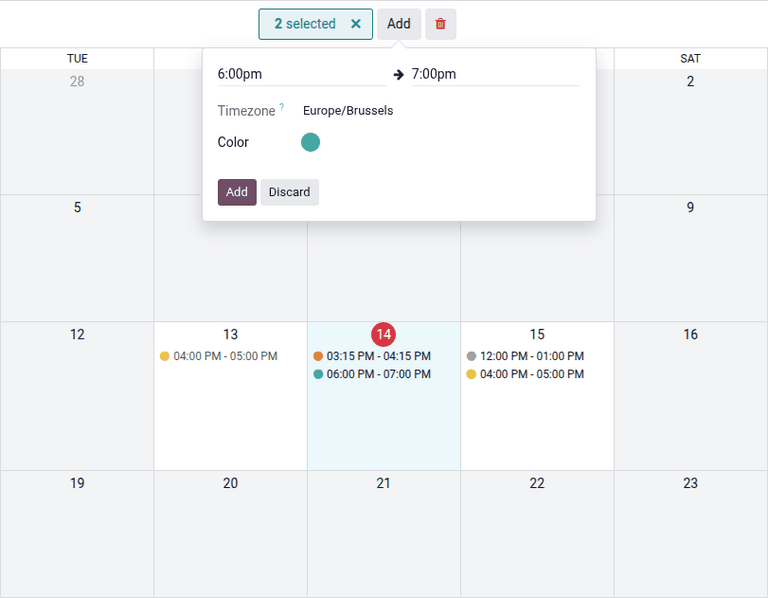
Clicking the slot counter opens a scheduling interface that works in two modes. The calendar view shows a visual grid of event dates where organizers can click and drag to select time blocks, then fill in start and end times through a quick popover. Selecting multiple entries at once and hitting “Add” creates several slots in a single action — useful for setting up a week-long conference schedule.
The list view offers a more structured approach for organizers who prefer working with data directly. Each row represents a slot with editable date, time, and color columns. The color option is a small but practical touch — assigning visual identifiers to slot types makes the calendar view instantly scannable when managing events with dozens of sessions.
Both views enforce date validation against the parent event’s date range. Try to create a slot outside the event window and the system returns an error, preventing the kind of scheduling inconsistencies that haunt post-event reconciliation.
Managing and Adjusting Slots After Creation
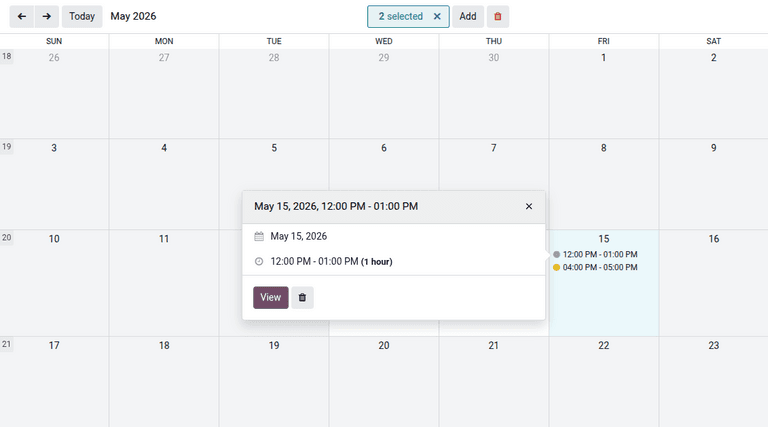
Slots are fully editable after creation. In the calendar view, clicking a specific slot opens a popover with options to view full details or delete the record. Bulk operations are available too — clicking a calendar date entry and then the delete button removes all slots for that date at once, which is faster than cleaning up individual records when rescheduling.
In the list view, inline editing lets organizers adjust times and dates directly. Checkbox selection supports bulk deletion through the Actions menu for situations where an entire day’s schedule needs to be rebuilt from scratch.
What Attendees See on the Registration Page
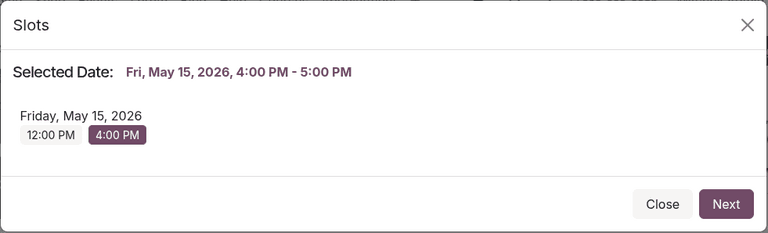
From the attendee side, the registration flow stays clean. Visitors navigate to the event page, click “Register,” and a slot selection popup appears showing all available time windows. Sold-out slots are visible but disabled, giving attendees context about popularity while directing them toward sessions with remaining capacity.
After selecting a slot, the standard ticket selection, contact information, and payment flow proceeds as usual. The slot choice is attached to the registration record, giving organizers a clear breakdown of attendance by session in their reporting.
One practical detail: slots whose end time has already passed are automatically hidden from the registration page. If an event spans three days and a visitor arrives on day two, they only see sessions that are still upcoming — no confusion about whether yesterday’s morning workshop is still available.
Where This Fits in the Bigger Picture
Multi-slot scheduling fills a gap that event organizers have been patching with creative workarounds for a long time. It’s particularly relevant for recurring format events: weekly workshops, rotating tastings, multi-track conferences, and appointment-style consultations.
Combined with the existing ticket system, website integration, and attendee management tools, it means organizers can now model complex event structures without resorting to external scheduling tools or duplicating events across the calendar. The event stays unified, the data stays consolidated, and the attendee experience stays simple.