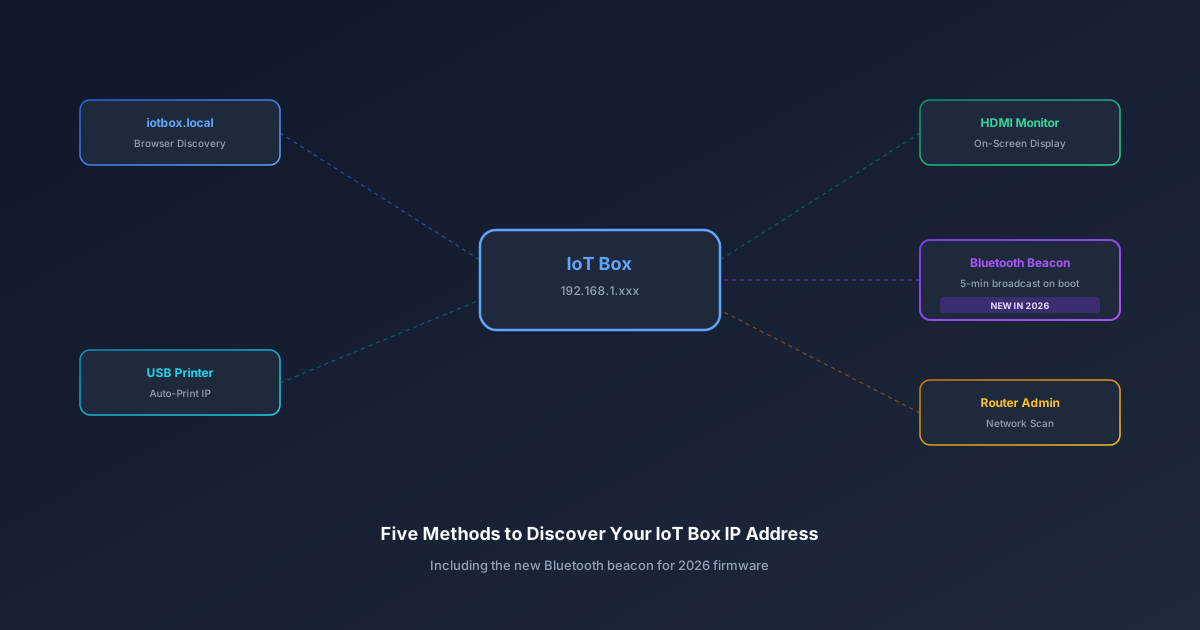
Anyone who has deployed hardware peripherals in a retail or warehouse environment knows the drill: you plug in the device, it connects to the network, and then you spend the next twenty minutes trying to figure out what IP address it grabbed. The IoT Box — that small gateway device that connects printers, scanners, scales, and payment terminals to Odoo — has always been straightforward once connected. Getting to that point was the awkward part.
The latest firmware update addresses this with a fifth discovery method that’s genuinely clever: for the first five minutes after booting, the IoT Box broadcasts its IP address as a Bluetooth device name. No apps to install, no cables to connect, no router admin panels to navigate. Just open Bluetooth settings on your phone and look for the device.
Method One: Type the Hostname in a Browser
The simplest approach, when it works, is navigating tohttp://iotbox.local in a web browser on any device connected to the same network. The IoT Box responds to mDNS queries and automatically redirects to its homepage, which displays the IP address along with connection status, paired devices, and configuration options.
The catch is that mDNS doesn’t work reliably on every network configuration. Corporate networks with client isolation, VLANs that separate IoT devices from workstations, or older routers that don’t forward multicast traffic can all break this method silently. It’s a great first try, but it’s not foolproof.
Method Two: Plug In a Receipt Printer
Connect a supported receipt or label printer to the IoT Box via USB, and the device automatically prints its IP address. No configuration needed — the IoT Box detects the printer and uses it as an output channel for its own network information.
This is arguably the most practical method for retail deployments where a receipt printer is going to be connected anyway. You’re not adding an extra step; the IP printout happens as a byproduct of the normal setup process. The only limitation is that the printer needs to be one of the supported models, and it needs to be connected via USB — network printers don’t trigger this behavior.
Method Three: Connect an External Monitor
Plug a monitor into the IoT Box’s HDMI port, and the device displays its IP address on screen. This is the most visual approach and the one that works regardless of network configuration, since it doesn’t depend on any network protocol to communicate the address.
For warehouse deployments where a monitor might already be nearby, or for initial setup in a back office, this is straightforward. For a retail counter where the IoT Box is tucked under the register with no spare display, it’s less practical — but it works as a fallback when other methods fail.
Method Four: The New Bluetooth Beacon
This is the new one, and it solves a real gap in the lineup. Starting with firmware version L2026.05.25 and later, the IoT Box broadcasts its IP address as a Bluetooth device name for five minutes after every boot. Open the Bluetooth settings on your phone, tablet, or laptop, scan for nearby devices, and the IoT Box appears with its IP address right in the device name.
Five minutes is enough time to spot it, jot down the address, and type it into a browser. After the window closes, the Bluetooth broadcast stops to avoid cluttering the airwaves — this isn’t a persistent beacon, it’s a temporary identification signal.
The elegance of this approach is that it requires zero infrastructure cooperation. mDNS might not traverse your network. You might not have a spare printer or monitor handy. You might not have admin access to the router. But every technician setting up hardware has a phone in their pocket, and Bluetooth scanning is universal. It turns the most common setup tool — the one everyone already carries — into the discovery mechanism.
Method Five: Check the Router Admin Panel
The classic fallback: log into your router’s administration interface and look at the list of connected devices. The IoT Box will appear with its hostname and assigned IP address. This works on any network, but it requires admin credentials for the router — which, in many retail and restaurant environments, means calling whoever manages the network.
For IT teams managing multiple locations, this is often the preferred method because it shows the full network picture, not just the IoT Box. But for a store manager doing a quick hardware swap, it’s overkill. The Bluetooth beacon fills exactly this gap — quick, self-service, no admin rights needed.
Why Five Methods for One IP Address
Having five different ways to find a device might seem excessive until you consider the environments where IoT Boxes actually get deployed. A quiet office with a spare monitor and full network access is one thing. A busy restaurant kitchen where the IoT Box is zip-tied behind a shelf, the Wi-Fi is managed by a third-party ISP, and the only available tool is the manager’s phone — that’s a completely different setup scenario.
Each method covers a different constraint. The browser approach is fastest when mDNS works. The printer method is zero-effort in retail. The monitor is the guaranteed fallback. Bluetooth is the new universal option for the phone-in-pocket technician. And the router panel is for IT teams who want the full picture.
The Bluetooth beacon, specifically, signals a broader shift in how hardware setup is expected to work. The assumption is no longer that a trained IT technician will be on-site with full network access. The assumption is that someone with a smartphone needs to get the device connected in ten minutes, and they shouldn’t need to ask anyone for a router password to do it.