Anyone who has ever set up a Point of Sale station knows the ritual. Plug in the receipt printer, connect the payment terminal, configure the IoT Box, and then spend the next twenty minutes wondering whether the hardware is actually talking to Odoo — or just sitting there, powered on, doing nothing. The printer light is green, the terminal screen looks normal, the IoT Box dashboard says “connected,” but when a customer walks up and taps their card, nothing happens. That guessing game is what Odoo’s latest update eliminates.
A new “Test” button has been added across Odoo’s IoT and Point of Sale modules, and it does exactly what the name suggests. Instead of waiting for a real customer transaction to discover that your hardware isn’t properly connected, you can now verify every device in your setup with a single click. It’s a deceptively simple change that solves one of the most common pain points in POS deployment.
What the Test Button Actually Checks
The diagnostic isn’t a generic “ping” that tells you a device is on the network. Each Test button is tailored to the device it’s attached to, running a verification that mirrors what the device will actually do in production.
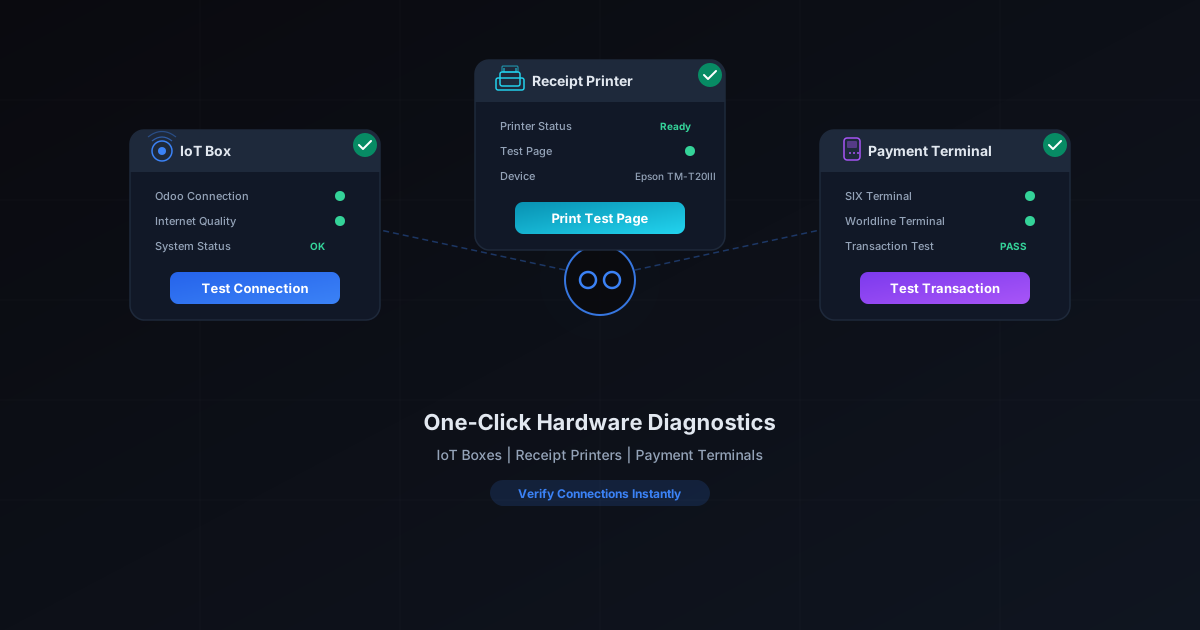
For the IoT Box, the Test button runs a two-part check. First, it verifies the connection between the IoT system and Odoo itself — confirming that commands can flow back and forth between the server and the hardware hub. Second, it assesses the quality of the system’s Internet connection, which matters because a weak or intermittent link can cause transactions to hang or status updates to lag. You get a clear pass-or-fail result rather than a vague “connected” status that doesn’t distinguish between a solid link and one that’s barely holding on.
For receipt printers, the workflow is equally direct. Navigate to the IoT system card, select the printer device, and click Test. A successful test prints a physical test page — actual ink on actual paper. If no page prints, the system surfaces troubleshooting guidance so you can diagnose the issue on the spot rather than hunting through forums for answers. It’s the kind of feedback loop that should have existed from the start: click a button, see a result, know where you stand.
Payment Terminals Get the Same Treatment
Payment hardware has always been the most anxiety-inducing part of a POS setup. A misconfigured terminal doesn’t just cause inconvenience — it blocks revenue. Customers standing at the counter can’t pay, lines form, and the store loses sales while someone scrambles to figure out whether the problem is the terminal, the network, or the Odoo configuration.
The Test button for SIX payment terminals sends a test transaction to the terminal, verifying that the connection between Odoo and the device is properly established. No real money moves, but the transaction exercises the same communication path that a live payment would use. If the test succeeds, you know the terminal will work when it matters. Worldline terminals receive the same treatment — a test transaction that validates the connection end-to-end without involving an actual card or payment.
This is particularly valuable during initial deployment, when multiple terminals might be configured simultaneously across different checkout lanes. Rather than processing a test purchase on each terminal to see if it works, staff can run the diagnostic from Odoo’s interface and confirm connectivity before the store opens.
Less Guesswork, Fewer Support Calls
Beyond the individual device checks, Odoo also restructured the existing tip sections in the IoT and POS documentation into a bulleted list format, making troubleshooting guidance faster to scan when something does go wrong. It’s a small detail, but it reflects a broader shift toward treating hardware setup as something that should be self-service rather than requiring a call to support.
The cumulative effect of these changes is significant. Hardware troubleshooting in POS environments has traditionally been a process of elimination — is the cable plugged in, is the driver installed, is the IP address correct, is the firewall blocking traffic. The Test button collapses all of that into a single action. Click, wait a moment, and either the device works or it doesn’t. If it doesn’t, the troubleshooting tips point you toward the most likely cause. The era of wondering whether your IoT hardware is connected is over. Now you just test it.