Resupply subcontracting is the more common of the two outsourced manufacturing patterns in Odoo. The company buys or produces components, stores them in its own warehouse, then sends them to a subcontractor who handles assembly. The finished product ships back. It’s the workflow that most contract manufacturing relationships follow, and Odoo has just rewritten the entire guide for setting it up from scratch.
The previous documentation had accumulated enough inconsistencies and outdated screenshots that following it step-by-step would leave users stuck at multiple points. The rewrite strips out the confusion and builds the guide around the actual sequence of clicks and decisions a manufacturing manager needs to make.
Configuration: Three Things That Have to Line Up
The setup requires three pieces to work together. First, the finished product needs the subcontractor listed as its vendor in the Purchase tab, with a delivery lead time that accounts for the full cycle — shipping components out, production time at the subcontractor, and delivery of finished goods back to the warehouse. One number, not three.
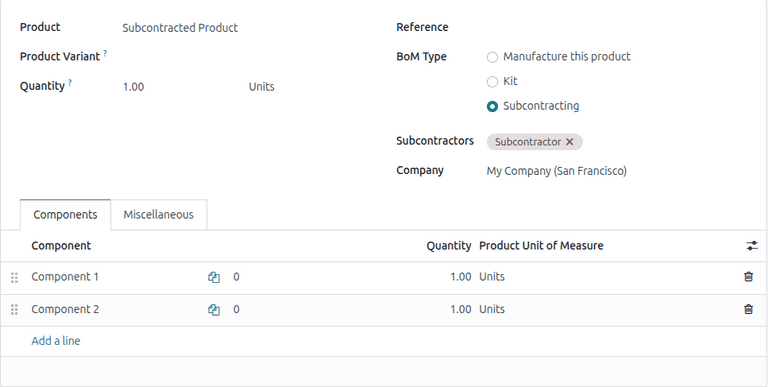
Second, the bill of materials gets set to the Subcontracting type with the subcontractor specified by name. The BoM lists every component the subcontractor needs to build one unit of the finished product.
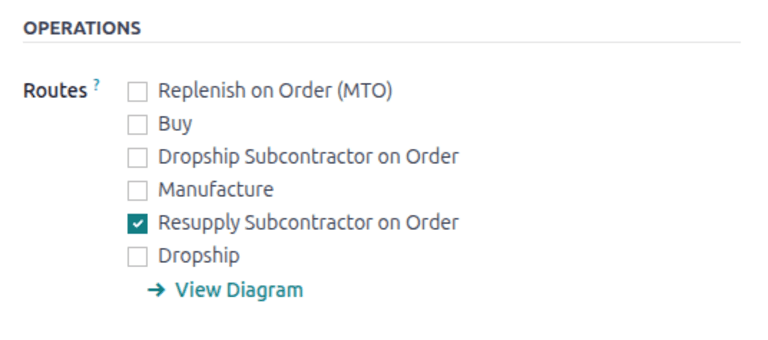
Third — and this is where the old documentation tripped people up — each individual component must have the “Resupply Subcontractor on Order” route enabled in its Inventory tab. This isn’t a one-click setting on the BoM. Users have to open each component separately and enable the route. Miss one, and the resupply order won’t include that component.
Running the Workflow End to End
Once configuration is in place, the workflow starts with a purchase order addressed to the subcontractor. Adding the subcontracted product and confirming the order triggers two automatic actions: a receipt is created for the finished goods the subcontractor will eventually deliver, and a resupply order is generated listing all components that need to be shipped out.
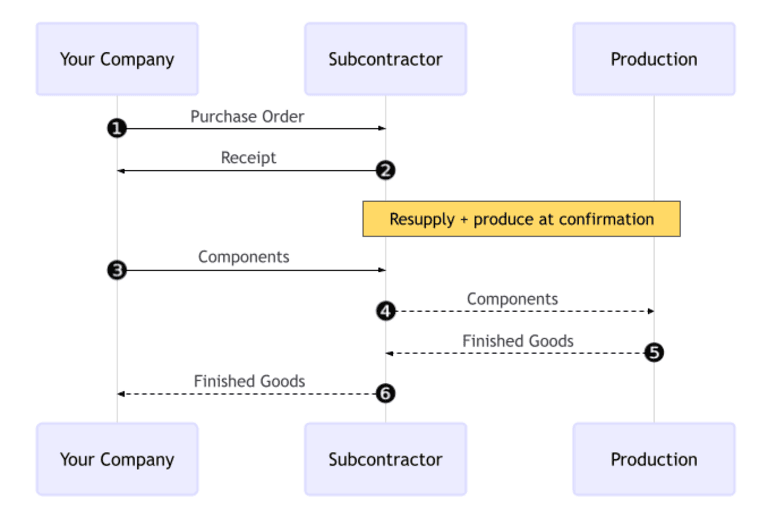
The Resupply smart button on the purchase order opens the outgoing shipment. Validating it confirms that components have left the warehouse and are on their way to the subcontractor. This is also where the Inventory app shows a “To Process” indicator for warehouse staff who manage outgoing shipments.
After the subcontractor finishes production and ships the finished product back, the Receive Products button on the original purchase order opens the inbound receipt. Validating it brings the finished goods into inventory.
Where Components Actually Go in the System
The inventory moves tell a story about what’s happening physically. Components leave the company’s warehouse and arrive at a dedicated Subcontracting Location — a virtual location that represents the subcontractor’s facility. A Production location then consumes those components and produces the finished good. The product moves from Production back to the Subcontracting Location, where it waits until the company validates receipt and brings it into actual warehouse stock.
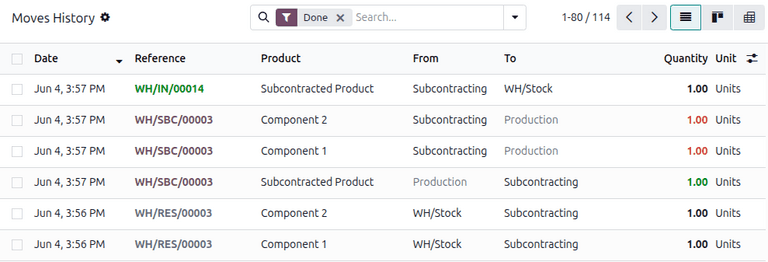
This chain of virtual moves keeps the accounting accurate. Component costs transfer from warehouse inventory to work-in-progress at the subcontracting location, then fold into the finished good’s valuation when production completes. The subcontractor’s service cost adds on top through the purchase order price.
Resupply Versus Dropship: Choosing the Right Route
Odoo now documents both subcontracting routes with equal depth, which makes the choice between them clearer. Resupply works when the company wants to inspect incoming components before sending them out, when multiple vendors supply different parts that need consolidation, or when the company manufactures some components internally and only outsources final assembly.
The dropship route — where vendors ship directly to the subcontractor — suits straightforward supply chains where materials don’t need intermediate handling. Both routes produce the same end result: a finished product in the company warehouse with a full audit trail of where every component came from and when it changed hands.