Anyone who has deployed Epson receipt printers with Odoo’s Point of Sale knows the ritual. Generate a self-signed SSL certificate. Navigate to the printer’s IP address. Get blocked by a browser security warning. Click through the “Advanced” bypass. Hope the certificate sticks. Repeat the process when the browser forgets the exception, or when a different workstation needs access, or when Chrome decides to tighten its security defaults again.
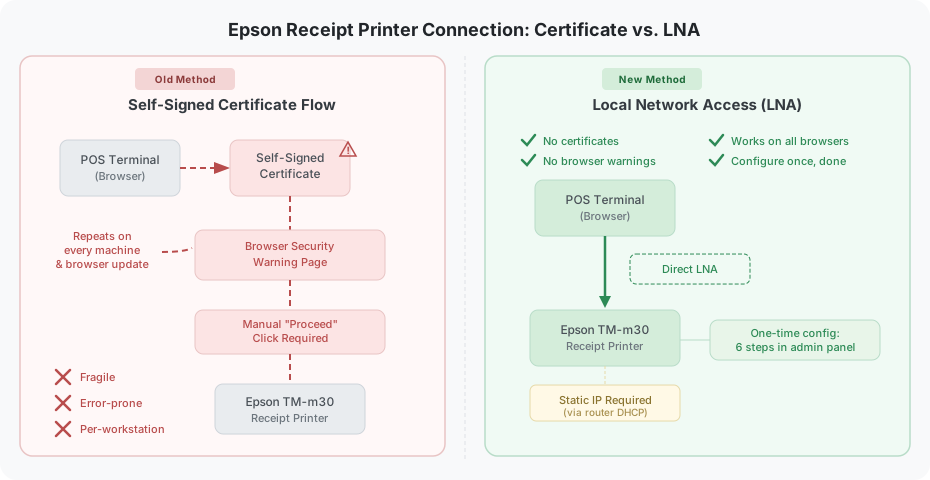
That workflow is now officially retired. Odoo has switched its recommended connection method for Epson ePOS receipt printers from self-signed certificates to Local Network Access — a direct communication path between the POS terminal and the printer that sidesteps TLS certificate validation entirely. The change turns a multi-step, error-prone setup into a six-click configuration in the printer’s admin panel.
What Local Network Access Actually Changes
The old method relied on HTTPS between the browser running the POS and the Epson printer sitting on the same local network. Since the printer’s certificate wasn’t issued by a trusted authority, every browser treated the connection as suspicious. Store managers had to manually accept the security exception on each machine, and that exception could expire or reset without warning.
Local Network Access (LNA) bypasses this entirely. Instead of negotiating an encrypted TLS handshake with a certificate the browser doesn’t trust, LNA establishes a direct connection over the local network. The browser communicates with the printer without demanding certificate validation, because the traffic never leaves the store’s internal network. No certificate to generate, no warning to dismiss, no exception to maintain.
The shift also affects how Odoo categorizes its POS hardware documentation. What used to be called “IoT system integration” is now referred to as “IoT connection” across the board — a subtle but meaningful rename that better describes the relationship between the POS software and the physical devices it talks to.
The Recommended Printers: Epson TM-m30 Series
Odoo specifically recommends the Epson TM-m30 i, TM-m30 ii, and TM-m30 iii for direct ePOS connections. These models are described as fully integrated with Odoo Point of Sale, meaning they support the full range of receipt formatting, kitchen order printing, and status reporting that the POS software expects. Other Epson ePOS printers work but may require additional configuration or lack certain features.
The TM-m30 series has become something of a standard in the Odoo ecosystem. Its compact form factor fits under most retail counters, it handles thermal receipt rolls without a ribbon change, and its built-in web server makes network configuration straightforward. With LNA, the setup just became a lot more straightforward.
Six Steps to Configure an Epson Printer With LNA
The new configuration process happens entirely inside the printer’s built-in administration panel. No command-line tools, no certificate generation utilities, no OpenSSL incantations.
Step 1:Open any browser on the local network and navigate to the printer’s IP address — something like https://192.168.1.25. The browser will show a security warning because the printer still ships with its default certificate. Click Advanced, then Proceed to [IP address] (unsafe). This is the last time that warning matters.
Step 2:On the Epson platform’s landing page, click Advanced Settings, then Administrator Login.
Step 3: Enter the initial administrator password. Epson prints this on a label on the back of the printer. If the password has been changed from the factory default, use the current one.
Step 4: Navigate to Print > Secure Printing and tick Disable. This turns off the printer’s requirement for encrypted print jobs, which is what allows LNA to work without a trusted certificate.
Step 5: Navigate to Network Security > SSL/TLS > Basic and tick Disable. This completes the shift away from certificate-based communication.
Step 6: Save the settings and restart the printer. The POS terminal can now communicate directly with the printer over LNA without any TLS handshake.
One Requirement That Cannot Be Skipped: Static IP
There is one hard prerequisite that LNA does not eliminate. The printer must have a static IP address, and that address must be configured through the router — not just set manually on the printer itself. If the router assigns a new IP via DHCP the next time the printer reboots, the POS will lose its connection with no error message, no fallback, and no automatic rediscovery.
This is the kind of configuration detail that trips up deployments weeks after the initial setup. The printer works perfectly during installation, then silently drops off the network after a power cycle or router restart. Assigning a DHCP reservation in the router’s admin panel — tying the printer’s MAC address to a fixed IP — is the only reliable way to prevent it.
A Simpler Hardware Story for Retail Deployments
The move to LNA is part of a broader simplification of Odoo’s POS hardware stack. The rebranding from “IoT system” to “IoT connection,” the updated printer recommendations, and the elimination of the certificate workflow all point in the same direction: reducing the number of things that can go wrong between the software and the physical devices it drives.
For a single-register shop, this means one fewer support call. For a chain deploying dozens of terminals, it means the difference between a half-day rollout and a multi-day project where IT staff nurse certificate exceptions across every workstation. The six-step configuration works the same way on the first printer and the fiftieth, and there is nothing browser-specific to break when Chrome, Firefox, or Edge ships its next security update.