Importing product variants into an ERP sounds like a five-minute task until you actually try it. You set up a spreadsheet, map your columns, hit upload, and discover that half your variants landed as standalone products instead of grouped under a single template. The other half created duplicate attributes because a comma was in the wrong place.
Odoo just reworked how its Sales module handles variant imports, and the changes address exactly these pain points. The variant import process now has its own dedicated section with explicit rules about column structure, attribute pre-loading, and batch boundaries that keep variant families intact during upload.
Attributes Must Exist Before Variants Can Reference Them
The biggest source of import failures has always been sequencing. Users try to upload a single spreadsheet containing both attribute definitions and product variants, expecting the system to sort it out. It doesn’t.
Odoo now makes this explicit: attributes and their values must be uploaded through a separate spreadsheet or CSV file before they can be applied to products. The attribute spreadsheet needs four specific columns — Attribute, Display Type, Variant Creation Mode, and Values / Value. Only after these exist in the system can you reference them in your product variant upload.
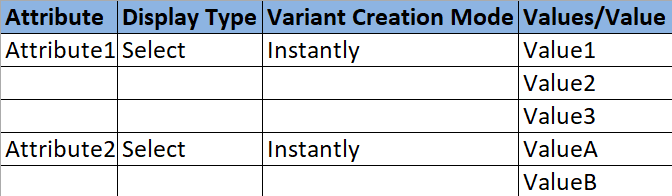
There is a safety net here: if an attribute name in your variant spreadsheet doesn’t match anything in the system, Odoo auto-creates it with default settings. Missing attribute values get auto-generated too. But relying on auto-creation means you lose control over display types and creation modes, so the two-step approach is the one worth following.
Three Columns That Make or Break the Import
The variant spreadsheet itself requires three specific columns to function:
- Name— the product template identifier that groups all variants together. Every row sharing the same Name value becomes a variant of the same product.
- Product Attributes / Attribute— the attribute name (like “Color” or “Size”) that this variant row represents.
- Product Attributes / Values— the specific value for that attribute (like “Red” or “Large”).

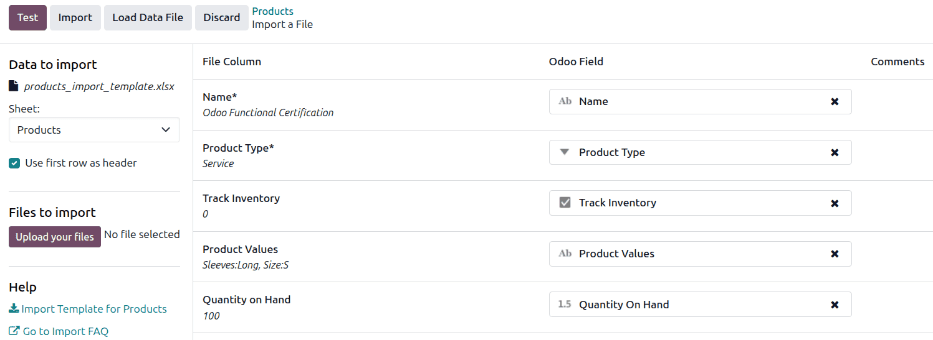
Get any of these column headers wrong, and the import either fails silently or creates products without variant associations. The field mapping dropdown in Odoo’s import interface lets you manually re-map columns if the headers don’t auto-match, but the cleanest path is getting the headers right in the spreadsheet before upload.
The Comma Trap Nobody Warns You About
Here’s a constraint that catches experienced users: commas cannot appear in attribute or value names. Odoo uses commas internally to separate items in multi-value fields, so an attribute value called “Cotton, organic” breaks the parsing logic. If you need to tag products with multiple categories, the separator must be a comma without spaces between items.
This is one of those rules that seems obvious in hindsight but has caused enough data corruption in real imports that Odoo now calls it out explicitly in the workflow.
The 2,000-Row Batch Ceiling
Large catalog imports face another constraint: Odoo splits uploaded files into batches of 2,000 rows by default. For standard product imports, this is invisible. For variant imports, it’s a potential disaster.
All variants of the same product template must land in the same batch. If your polo shirt has 40 size-color combinations and the batch boundary falls in the middle, you end up with two incomplete product templates instead of one complete one. The fix is simple — organize your spreadsheet so all rows for a given product are contiguous and check that no template spans the 2,000-row boundary.
Internal References: The Duplicate Prevention Key
When updating existing products through import, the Internal Reference field becomes critical. Odoo uses this field to match incoming rows against existing records. Without it, the system has no reliable way to determine whether a row should create a new product or update an existing one — and it defaults to creating, which means duplicates.
The updated workflow recommends downloading the existing product template first, making modifications to the exported spreadsheet, and re-importing with Internal References intact. It’s not glamorous, but it’s the only reliable way to do bulk product updates without creating ghost records.
Who This Actually Helps
Product variant imports are a recurring headache for retail and manufacturing businesses migrating to Odoo or maintaining large catalogs. A clothing company with 200 styles, each in 5 sizes and 4 colors, is looking at 4,000 variant rows. Getting the column structure wrong means hours of cleanup.
The tighter import documentation turns what used to be a trial-and-error process into a checklist: upload attributes first, structure your three required columns, avoid commas in names, keep templates within batch boundaries, and use internal references for updates. It’s the kind of workflow clarity that saves a Tuesday afternoon.