Odoo’s spreadsheet module has been quietly gaining ground as a legitimate alternative to standalone tools for teams already running their business data inside the platform. But one area where it lagged behind was basic sheet management. If you had a workbook with ten sheets, navigating between them felt clunky, and organizing them visually was essentially impossible.
That just changed. The latest update adds a proper sheet management layer to the bottom bar, bringing color-coded tabs, a navigation menu, hidden sheets, and the full set of tab-level actions that spreadsheet users take for granted.
A Navigation Menu That Actually Lists Everything
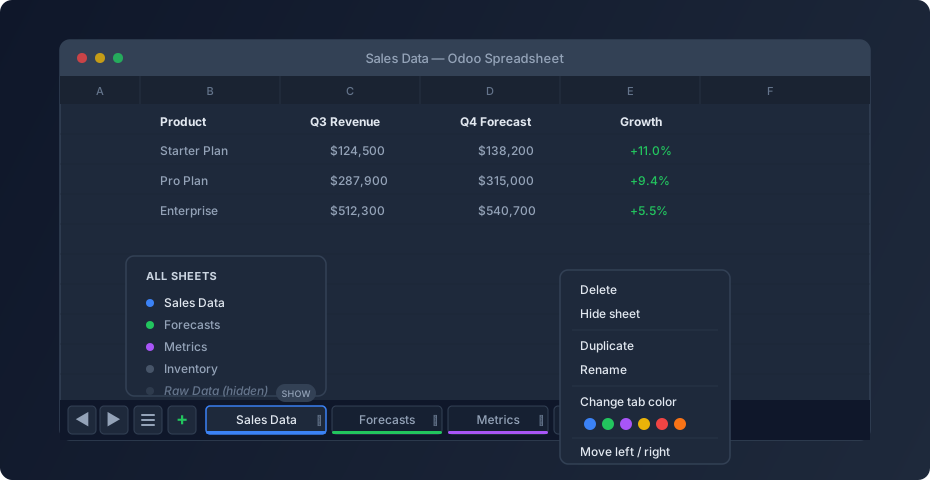
The bottom bar of an Odoo spreadsheet now includes a menu icon that, when clicked, lists every sheet in the workbook. This sounds trivial until you’ve dealt with a workbook where twenty tabs extend well past the visible area and you’re clicking arrow buttons to scroll through them blindly.
The menu shows all sheets in one view — including hidden ones, which appear grayed out for editors. You can jump to any sheet with a single click rather than scrolling through the tab bar. For workbooks that have grown organically over months (as they always do), this is the kind of navigation improvement that saves minutes every day.
The left and right caret icons flanking the menu button still work for scrolling the tab bar directly. But the menu makes them a fallback rather than the primary navigation method, which is how it should have been from the start.
Color-Coded Tabs for Visual Organization
Every sheet tab can now be assigned a color. The color shows up as a bar along the bottom edge of the tab in the bottom bar, and as a small dot next to the sheet name in the navigation menu. It’s a visual cue, not a functional grouping — there are no color-based filters or folders — but for teams that use spreadsheets with a mix of input sheets, calculation sheets, and summary views, the ability to color-code by purpose makes the tab bar immediately scannable.
Setting a tab color happens through the context menu, accessible by right-clicking the tab or clicking the down-caret icon on it. A row of color swatches appears, and a single click applies the color. No dialog boxes, no extra confirmation steps. It’s the kind of interaction that works precisely because it doesn’t demand attention.
Hidden Sheets for Sensitive or Intermediate Data
This is the standout feature. Editors can now hide sheets from the bottom bar entirely. A hidden sheet disappears from the tab row and becomes inaccessible to viewers — they can’t see it, can’t navigate to it, and won’t even know it exists. Editors still see hidden sheets in the navigation menu, listed in a grayed-out style, and can restore them with a click.
The use case is straightforward. Many business spreadsheets contain intermediate calculation sheets, raw data dumps, or pricing assumptions that are necessary for the formulas to work but shouldn’t be visible to everyone who opens the file. Until now, the only option was to leave those sheets exposed or move the calculations into individual cell formulas, which trades readability for privacy. Hidden sheets solve this cleanly: the data stays in a dedicated sheet, the formulas reference it normally, and viewers see only the polished output.
The access control is role-based rather than password-based. If you’re an editor, you can see and restore hidden sheets. If you’re a viewer, they don’t exist as far as you’re concerned. This maps well to Odoo’s broader permissions model and avoids the awkwardness of sheet-level passwords that everyone shares anyway.
The Full Context Menu
Right-clicking a sheet tab (or clicking its down-caret icon) opens a context menu with the actions you’d expect from a mature spreadsheet application. Delete removes the sheet after a confirmation prompt — no silent deletions. Duplicate creates a copy immediately to the right of the original, which is useful for creating monthly or quarterly variants of a template sheet. Rename makes the tab name editable inline, and double-clicking the tab triggers the same behavior. Move Left and Move Right shift the tab one position, though dragging the tab directly also works and feels more natural for larger reorganizations.
The plus icon on the bottom bar adds a new blank sheet to the right of the currently active one. It’s a small detail — inserting to the right of the active sheet rather than at the end of the tab bar — but it means new sheets appear in a contextually logical position rather than requiring immediate reordering.
Who Gets What
All of the management actions — adding, deleting, hiding, duplicating, renaming, recoloring, and reordering sheets — are available to users with Editor rights. Viewers can navigate between visible sheets using the tab bar, the caret scroll buttons, and the navigation menu, but they can’t modify anything. This split means a team lead can set up and organize a multi-sheet workbook, hide the sheets that aren’t relevant to the audience, and share it knowing the structure will stay intact.
Small Touches That Add Up
The color dots in the navigation menu mirror the color bars on the tabs, so the visual language is consistent whether you’re looking at the tab bar or the menu. Hidden sheets show their “Show” button right in the menu, so restoring one doesn’t require navigating to a settings page. The confirmation prompt on delete protects against accidental loss without introducing a recovery workflow that would add complexity.
None of these features are revolutionary on their own. Every desktop spreadsheet application has had them for decades. But for a browser-based spreadsheet embedded inside an ERP, catching up on these basics matters more than adding flashy features. Teams that use Odoo Spreadsheets for financial models, inventory tracking, or sales forecasting are working with complex, multi-sheet workbooks every day. Giving them proper tools to organize those workbooks is how you keep them from switching back to a desktop application.