PDF reports in Odoo have always been functional. They get the job done. But for businesses that use invoices, quotations, and delivery slips as customer-facing documents, “functional” only goes so far. The latest round of changes to Odoo Studio’s report editor closes some notable gaps — the kind that previously required custom development or awkward workarounds to address.
The update adds three data fields to the document layout configuration, reworks how you preview and print reports, and streamlines logo editing with a hover-based control. Individually, these are small refinements. Together, they turn Studio’s PDF output into something you can hand to a client without reaching for a separate design tool first.
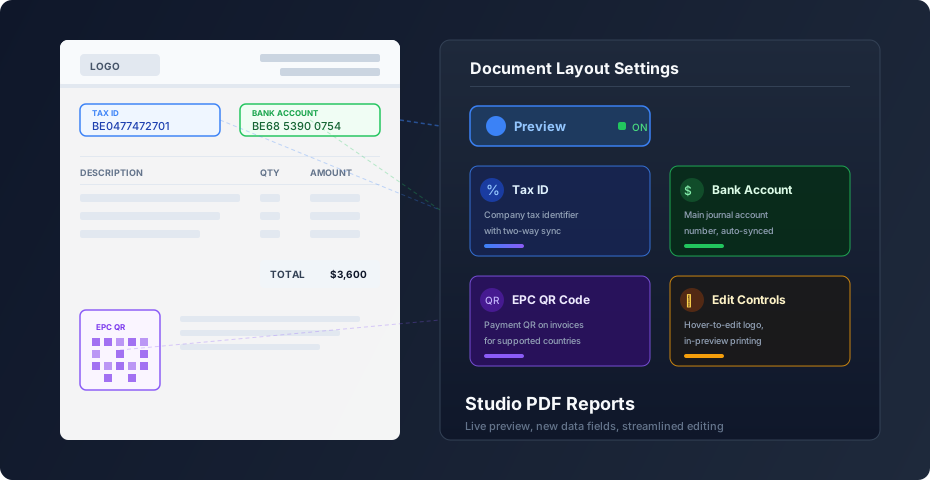
Three New Fields on the Document Layout
The “Configure your document layout” window — the place where you set your company’s header style, paper format, and logo — now includes three additional fields that pull data directly from your company record and accounting configuration.
Tax IDdoes exactly what the name suggests: it displays your company’s tax identification number on the report. What makes it more useful than a static text field is the two-way sync. Change the Tax ID in the layout settings and it updates on the company record. Change it on the company record and the layout reflects it immediately. If your company doesn’t have a tax ID — some jurisdictions don’t require one for small businesses — entering “/” explicitly marks it as absent rather than leaving an awkward blank.
Bank Account Numberpulls from the company’s main bank journal. This is the account where you want invoice payments directed, and having it on the report means customers see the payment details without a separate communication. Like the Tax ID, changes sync both ways between the layout and the underlying bank journal configuration.
QR Codeadds an EPC QR code to your invoices. EPC — European Payments Council — QR codes encode payment information that banking apps can scan to pre-fill transfer details. The feature is available in countries where EPC QR payments are supported, and the same toggle can be found under Accounting → Configuration → Settings in the Customer Payments section. Having it accessible from the document layout means you don’t need to navigate to accounting settings when you’re already configuring your report appearance.
The Preview Toggle Replaces Print Preview
The old workflow for checking how a report looked before sending it involved a “Print preview” button that generated a PDF download. It worked, but it was clunky — you’d make a change, hit Print Preview, wait for the PDF, open it, realize the margins were off, go back, adjust, and repeat.
That button is gone. In its place is a “Preview” toggle at the top-left of the Studio report editor. Flip it on and you get a live preview of how your layout settings affect the document, right in the configuration window’s right-hand pane. The feedback loop drops from minutes to seconds.
When you do want an actual PDF — to check print margins, test how it looks on paper, or send a proof — you click “Print” while in preview mode. The download happens from the preview state rather than requiring you to exit the editor first. It’s a subtle workflow change, but anyone who has spent an afternoon tuning report layouts will appreciate the difference.
Logo Editing Gets a Hover Control
Changing your company logo on reports used to involve navigating to the company settings. The updated editor puts an edit control directly on the logo image: hover over it and a pencil icon appears. Click it, and you’re editing the logo that lives on the Company model, reachable through Settings → Update Info.
This is the kind of quality-of-life improvement that doesn’t headline a release announcement but saves real time. When you’re in the middle of configuring a document layout, breaking context to go find the company settings page is friction. The hover-to-edit pattern keeps you in the layout editor where the work is happening.
Why These Changes Matter for Real Documents
The three new fields address requirements that are non-negotiable in certain business contexts. In the European Union, invoices typically must display the seller’s VAT identification number. Many countries require bank account details on commercial documents. And EPC QR codes are rapidly becoming a standard expectation in B2B transactions across SEPA countries, where they eliminate the manual entry of IBANs and payment references.
Previously, adding these elements to Odoo reports meant either customizing the report template with QWeb XML edits or installing third-party modules. Neither option was accessible to business users working in Studio. Now they’re toggles on the same configuration page where you set your logo and paper format.
The two-way sync on Tax ID and Bank Account Number is a practical detail worth noting. In multi-company setups, each company has its own layout configuration. Changing a bank account number in the layout updates the journal, and vice versa, which prevents the common problem of mismatched payment details between what the report shows and what the accounting system expects.
Fitting Into Studio’s Report Editing Story
Studio’s report editor has been steadily accumulating features that reduce the gap between what business users can do themselves and what requires developer intervention. The preview toggle, data field additions, and streamlined logo editing all push in the same direction: making the document layout a self-service configuration surface rather than a template that only developers touch.
For companies that treat their invoices and quotations as brand touchpoints — which, if you’re sending them to clients, they are — the ability to configure Tax ID, bank details, and QR codes without leaving the visual editor is a meaningful step. It won’t replace the need for custom QWeb templates in complex scenarios, but for the standard invoice, sales order, or delivery slip, Studio is increasingly the only tool you need.