Anyone who has managed bills of materials in a manufacturing ERP knows the particular pain of component substitution. A supplier discontinues a resistor. A cheaper gasket becomes available. A regulatory change forces you to swap out a material across your entire product line. In most systems — and in previous versions of Odoo — that meant opening every single BOM that used the old part, finding the line, changing it, saving, and moving on to the next one. Multiply that by forty BOMs and you’ve lost an afternoon to clerical work that should take thirty seconds.
Odoo’s latest manufacturing update finally addresses this. Version 19.3 ships two capabilities that work together to make bulk component management practical: a Show BOM Lines action and a multi-BOM component replacement workflow.
Show BOM Lines: See Every Instance of a Part Instantly
The new workflow starts from the Bills of Materials list view. You filter the list to find BOMs that contain a specific component — say, a particular bolt or circuit board — then select the BOMs you want to inspect. From the Actions menu, you select Show BOM Lines, and the system displays every matching component entry across all selected BOMs on a single page.
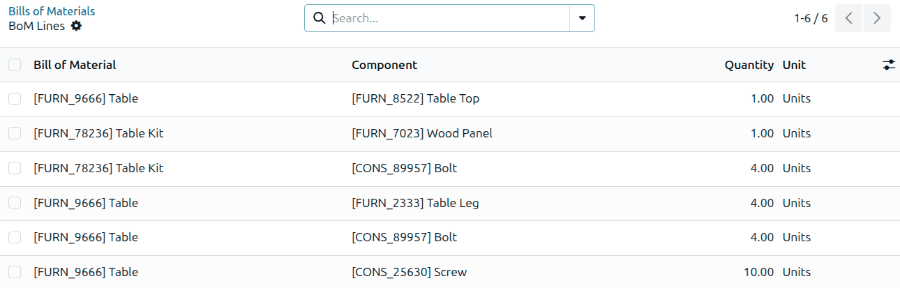
This is more useful than it sounds. Previously, understanding where a component appeared across your product catalog required either a custom report or manually clicking into each BOM. The Show BOM Lines action turns that into a two-click operation. For manufacturers managing hundreds of products with shared components, this alone eliminates a significant source of operational blind spots.
Replacing a Component Across Multiple BOMs
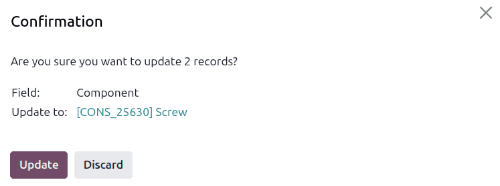
Once you can see all instances of a component on one screen, the natural next step is changing them all at once. Odoo now supports exactly that. After filtering and displaying BOM lines for a specific component, you select the entries you want to update, modify the Component field to the new part, and confirm the change.

The system displays a confirmation dialog before applying the update, making it clear that multiple components across multiple BOMs will be modified. No ambiguity, no accidental changes to BOMs you didn’t intend to touch.
The Product Form Route
There’s a second path to the same result that starts from the component’s product form rather than the BOM list. Every component now has a Used In smart button that shows every BOM line where that product appears. From there, you can select entries and swap the component just like you would from the BOM list view.

This approach makes more sense when you’re starting from the component itself — a vendor tells you a part is being discontinued, and you need to immediately understand the blast radius and make the swap. You don’t need to think about which BOMs to check. The system shows you.
Why This Matters for Real Manufacturing Operations
Component substitution isn’t an edge case. It’s one of the most common BOM maintenance tasks in any manufacturing operation. Supply chain disruptions, cost optimization, engineering changes, regulatory compliance — all of these trigger component swaps that can touch dozens or hundreds of BOMs simultaneously.
The old workflow of editing each BOM individually wasn’t just slow. It was error-prone. Miss one BOM and you’re manufacturing products with a discontinued part. Forget to update quantities when the new component has different specifications and you’ve introduced a quality issue. Bulk operations with confirmation dialogs reduce both categories of risk.
For companies already running Odoo Manufacturing alongside master production scheduling and subcontracting workflows, the BOM lines feature fills a gap that became more painful as product catalogs grew. The more products you manufacture, the more you need to manage components as a cross-cutting concern rather than a per-BOM detail.
By-Products Get Cleaner Configuration
The same update also refines by-product management within BOMs. Manufacturers can now add residual products — sawdust from lumber cutting, metal shavings from machining, secondary compounds from chemical processes — directly in a dedicated By-products tab on the BOM form. Each by-product line specifies the product, quantity, unit of measure, and optionally the operation where it gets produced.
This isn’t new functionality, but the configuration interface has been cleaned up to make by-product tracking more accessible to manufacturers who previously ignored it because the setup was buried. For operations where by-products have real value — recycled materials, secondary chemical outputs, resalable offcuts — tracking them accurately in the BOM means they flow correctly into inventory and costing.
The Bigger Picture
Odoo’s manufacturing module has been steadily improving its BOM management capabilities, from serial number tracking on the shop floor to the bulk component operations landing in 19.3. Each update reflects the same insight: BOMs aren’t static documents. They’re living records that change constantly, and the tools for managing them need to match the pace of real manufacturing operations.